IBGA Guide
The IBGA Docker Image
Understanding the Concept of Images and Containers
If you are new to docker, images and containers, here is a primer on each concept. An image is a read-only template acting as the base files that make up a system. A container is a runnable instance of an image.
A container is a lot like an instance of virtual machine (VM), whereas an image is like the disk of the VM.
Docker is a set of software that implements OS-level virtualization technology to support running of containers based on images.
Obtaining the IBGA Image From Docker Hub
The IBGA docker image is located at https://hub.docker.com/r/heshiming/ibga. To obtain the image, use the following command:
$ sudo docker pull heshiming/ibga
However, if you plan to follow our Docker Compose flavored configuration, you don’t need this command to pull it. Docker Compose will pull it automatically when you launch the container.
Building the Image
Docker is required before building the IBGA image. Please refer to its official documentation for the details about installing.
Use the build.sh script to build the IBGA docker image on your own computer:
$ ./build.sh
You will need a bash shell, available on Linux, UNIX, and macOS to run this script. If you are using Windows, open up build.sh in a text editor, and paste the docker build command into a command prompt window.
Behind the Scene
IBGA is designed to be a “disposable container”, that is, important states and program files are not persisted inside the container. The container is loaded with just a set of bash scripts, X11 and VNC to support remote viewing, and the automation dependencies, namely JAuto and xdotool. Upgrading will be a piece of cake.
IBGA makes use of Xvfb (why not xserver-xorg-video-dummy?), and x11vnc to implement a headless X11 environment that is capable of both running a GUI application as well as allowing remote control.
IBGA employs a set of bash scripts to manage everything: from installation to daily restarts; from logins to option settings. The image itself does not come with a copy of IB Gateway. Instead, it downloads and installs from the web upon first start.
JAuto is a crucial piece in automation implementation. To click a button or fill in a text box, you need its coordinates and text. JAuto is capable of listing onscreen UI components and their attributes. Another critical piece is xdotool, which simulates keyboard and mouse actions with the coordinates supplied by JAuto.
Configuring IBGA (Docker Compose flavor)
IBGA docker image contains utilities and scripts for automating IB Gateway in headless mode. To launch the program, you need to create a container. To automate the logins, you need to supply a username and password, among other arguments. An easy way to go about this is to use a Docker Compose config file.
Installing Docker Compose
Depending on your host OS (Linux, for instance), Docker Compose may be a standalone executable, separate from Docker itself. Please refer to the official documentation to see if you need to follow extra steps to install Docker Compose.
An Example Docker Compose Configuration File
The Docker Compose configuration file is in YAML syntax, typically named docker-compose.yml. You can create and edit this file in a text editor. Don’t worry if you are new to the YAML format. A couple of examples should get you started.
version: '2'
services:
  my-ibga:
    image: heshiming/ibga
    restart: unless-stopped
    environment:
      - TERM=xterm
      - IB_USERNAME=username
      - IB_PASSWORD=password
      - IB_REGION=America
      - IB_TIMEZONE=America/New York
      - IB_LOGINTAB=IB API
      - IB_LOGINTYPE=Live Trading
      - IB_LOGOFF=11:55 PM
      - IB_APILOG=data
      - IB_LOGLEVEL=Error
      - IB_PREFER_IBKEY=true
    volumes:
      - ./run/program:/home/ibg
      - ./run/settings:/home/ibg_settings
    ports:
      - "15800:5800"
      - "4000:4000"
For more information about a Docker Compose configuration, including mechanisms such as volumes, ports, restart, refer to Docker Compose Basics.
For more information about IBGA-specific IB_* arguments (in fact, environment variables), refer to IBGA Configuration Arguments.
Docker Compose Basics
This section discusses the basics of a Docker Compose configuration, including mechanisms such as volumes, ports, restart, etc. For IBGA-specific IB_* arguments (in fact, environment variables), refer to IBGA Configuration Arguments.
Configuration Staples
Docker compose file specification is a very long read. But you don’t need all that to start using IBGA. Just consider a few sections of this example as staples. For instance:
version: '2'on the first line, don’t change thatservices:on the secondmy-ibga:is the name of the service (also used as an auto-generated container name), which is used as an identifier of the instance within the docker context. If you plan on running multiple instances, give each a clear name such asmy-roth-account. Note there are 2 spaces before the name, indicating that themy-ibganode is a child node underservices, by YAML format.image: ibgameans that the container will use theibgaDocker image, which can be pulled automatically from Docker Hub or built locally. Note the four spaces ahead ofimagemeans that theimagenode is undermy-ibga.restart: unless-stoppedmeans unless you manually stop the container, Docker will always try to start it up. It applies to both instances being stopped due to a reboot or crash.
Environment Variables
The environment section defines the environment variables. TERM=xterm is for colorful log output from the Docker console. And the rest of the variables are explained in the IBGA Configuration Arguments section.
Refer to the official documentation for technical details about environment variables.
Volumes
The volumes section defines file system mapping between a host and a container. Since the container is like a virtual machine, its hard drive is a “disk image” (a big file). Accessing its files is typically complex. Docker’s bind mounts mechanism enables “mounting” a host directory for access inside the container so that the files used in the container reflect on the host. Bind mounts makes the container disposable, which means you can safely delete an IBGA container or its image without losing your IB Gateway program files or settings. To upgrade IBGA, delete the container and the image to let Docker reload. To move your setup to another machine, copy the folders in the volumes section over.
In the example, there are two bind mount directories:
- ./run/program:/home/ibg
- ./run/settings:/home/ibg_settings
It means to map ./run/program on the host to /home/ibg in the container, and map ./run/settings on the host to /home/ibg_settings in the container, where ./ on the host is the directory where docker-compose.yml is located. The syntax is host_dir:container_dir.
IBGA installs IB Gateway into its /home/ibg directory, and redirects its user settings (from the settings Dialog) to /home/ibg_settings. These directories can be empty upon container start. In which case, IBGA will install IB Gateway into ./run/settings, and save user settings into ./run/settings respectively.
Refer to the official documentation for technical details about volumes.
Ports
Due to Docker’s firewall-style default networking, ports inside the container are not exposed externally by default. You can only access the container from outside after port mapping. The ports section defines the port mapping between the host and the container. Its syntax is host_port:container_port.
In the example, there are two port mappings:
- "15800:5800"
- "4000:4000"
It means to map host port 15800 to container port 5800 and host port 4000 to container port 4000. So if your server IP address is 192.168.1.100, this enables access to 192.168.1.100:15800. IBGA’s port 5800 container port is an HTTP server with VNC access from a browser. Visit http://192.168.1.100:15800 to see the live actions of IBGA running. IBGA’s port 4000 is IB Gateway’s API socket port, which you can connect from an API client.
Refer to the official documentation for technical details about ports.
Running IBGA (Docker Compose flavor)
Starting Your IBGA Containers
Once you have your docker-compose.yml configuration ready, running IBGA is as simple as:
$ sudo docker-compose up -d
Or if you named your configuration otherwise:
$ sudo docker-compose -f my-own-config.yml up -d
If the IBGA docker image is not downloaded at this point, Docker Compose will automatically pull it for you before creating the container.
The -d argument tells Docker Compose to launch the container in the background (as in “daemon”). If you are just testing out IBGA, you can omit this argument so that the container occupies your console. In this case, interrupting via Ctrl+C or disconnecting from the shell will kill the container. For more information regarding docker-compose command line arguments, please refer to the official documentation.
If you followed the default configuration where restart: unless-stopped is set, the container will always be up with the host unless you manually shut down the container or Docker.
In the default configuration, two ports 15800 and 4000 are exposed:
| Port | Function | Note |
15800 |
Browser-based VNC client to inspect container running status. | Access via http://ip:15800/ in a browser. Made possible by novnc |
4000 |
IB API server port | Internal mapping (via socat) is done to allow any IP address to connect. |
When your container is up and running, it is a good time to pay attention to security. Understanding security is critical to keep you safe trading.
Understanding How Daily Restarts are Handled
IB Gateway is designed to restart everyday. It does so by letting you choose a fixed time for restarts, and an option for either restart IBG or quit.
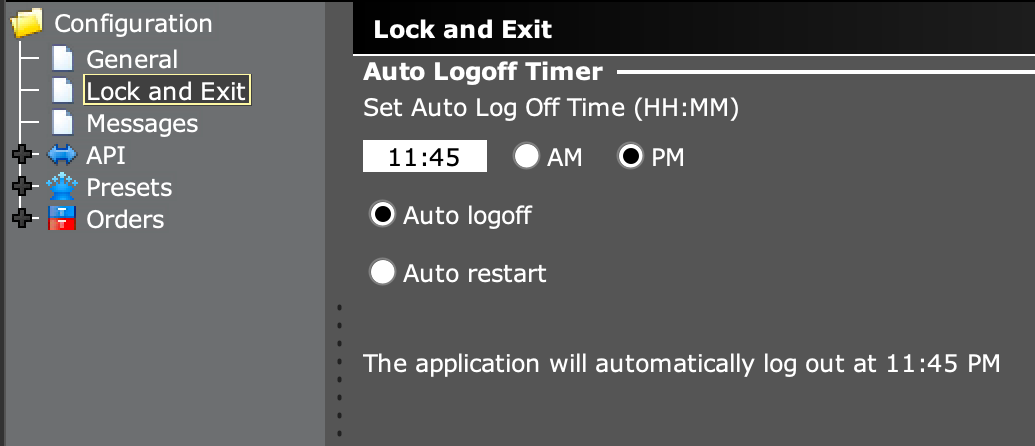
IBGA handles daily restarts by:
- Passing
docker-compose.ymlto IB Gateway via simulating user interface actions. - Forcing the “Auto restart” option, so that two-factor authentication state persists for a week.
- Detect whether IBG is still running every 5 seconds, and start it again if not.
It is important to understand that the settings in the above screenshots are managed by IBGA and should not be manually altered.
Understanding How Crashes and Freezes are Handled
Since the daily restart handling routines are already detecting if IBG is running, a crash is handled the same way as daily restarts.
Freezes are much harder to detect. First, freezes are rare. When it happens, the underlying automation dependency JAuto is still working, and can still enumerate UI widgets. In fact, even socket APIs could be partially working. A programmatic way to detect a freeze would require user interaction every few seconds, which can be cumbersome. The current IBGA implementation approximates freeze detection by allowing IB Gateway to run for 24 hours (in fact, 86520 seconds) at most. If IBG is still running after 24 hours, IBGA will kill it (kill -9). Health check routines will pick up the quit and try to start it again.
My own experience is that IB Gateway is only likely to freeze after the market closes on the paper trading account. Such a mechanism only solves freezes once a day but can specifically address this issue.
Upgrading IBGA (Docker Compose flavor)
Upgrading the IBGA Container
Container upgrading refers to that the IBGA image itself (with the setup and controlling scripts) has been updated, and you would like to catch up with bug fixes and new features. If you followed the Docker Compose flavored running tutorial, container upgrading is straightforward.
First, in the directory where your docker-compose.yml is located:
$ sudo docker-compose pull
This will update your local IBGA image to the latest. Then:
$ sudo docker-compose up -d
Docker will automatically recreate your containers using the latest image and restart them. Note that IB Gateway will be restarted and there will be interruptions. Since the installed IB Gateway and its settings are persisted outside the container, all programs and settings are kept.
Upgrading IB Gateway
To upgrade IB Gateway executable, the easiest way is to remove the directory mounted to IB Gateway installation path. If you followed the Docker Compose flavored running tutorial, the path is run/program under where docker-compose.yml is resided. Before removal, shut down the container.
$ sudo docker-compose down
$ sudo rm -rf ./run/program
$ sudo docker-compose up -d
When the container is up again, it will automatically create that run/program mount and run installation. And since we kept the settings file elsewhere (./run/settings), the settings will be kept.
Frequently Asked Questions
What OS does IBGA support?
IBGA is a self-sufficient image. It runs on Docker. Docker is available on a variety of Linux platforms, macOS, and Windows 10.
What makes IBGA different from IBC?
IBC automates many aspects of the Interactive Broker trading software. It is, however, not designed to run in a headless server. Before I started on IBGA, I spent plenty of time trying to make IBC work inside a container but couldn’t reliably do so.
Technically, IBC is a Java program hosting the IB Gateway main class. Certain aspects of IBC can only be done via reverse-engineering how IB Gateway works. IBGA on the other hand, uses two-component automation: one to extract UI coordinates, and another to simulate input. It is a more efficient way to achieve automation, and I don’t need to reverse-engineer the app.
Can I host IBGA on an internet server?
Not recommended. Please refer to Security to learn about the potential issues of hosting IBGA on a public server.
How is two-factor authentication (Interactive Brokers Secure Login System SLS) handled in IBGA?
Interactive Brokers now enforces two-factor authentication for trading. As a result, IBGA’s login procedure can no longer be fully automated. The easiest second factor (whether you have a physical password device or not) is to configure IB Key on your phone (iPhone, Android Guide). Once this is configured, you will see the following IBGA screen (via VNC) upon login, right after IBGA automatically enters the password.
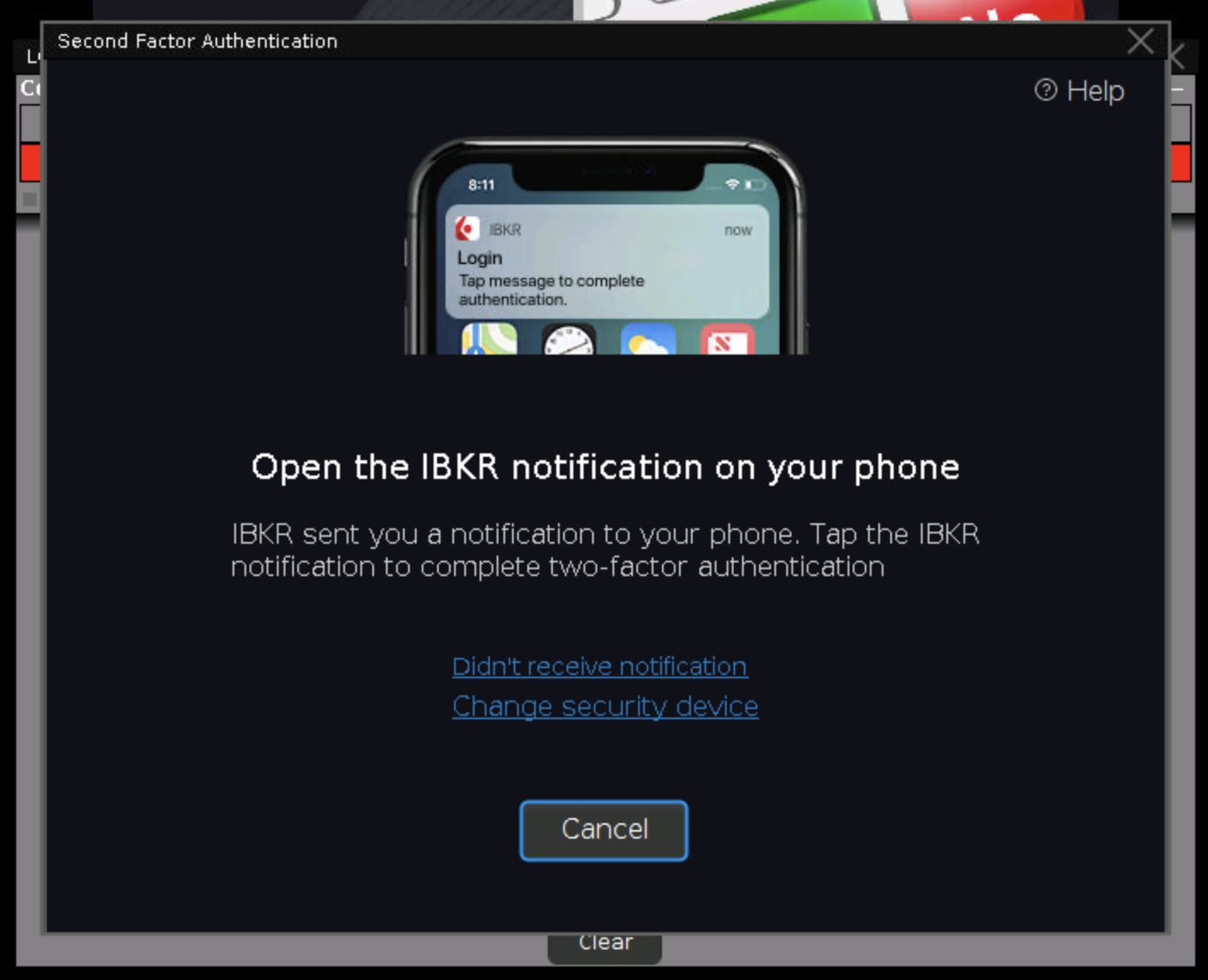
Your phone will receive a push notification where you can tap and allow the login.
IBGA can support physical password devices too, in which case, you have to open up the VNC in a browser (generally a computer is preferred over a phone) to enter the password according to instructions.
In both scenarios, the confirmation has to be done within 2 minutes. If you didn’t complete the login, IBG will return to the initial login screen.
Note that if you have more than one device (for instance, an IB Key on phone and a physical device), you will be presented with a choice, in which case, you have to open up the VNC in a browser and choose “IB Key” before you receive a push notification. By default, IBGA will not touch second factor device choices. But by setting IB_PREFER_IBKEY environment variable to “true”, IBGA will automatically choose IB Key when there are more than one choices, enabling simple confirmation without VNC.
How do I run multiple instances of IB Gateway on the same server?
In the example configuration, only one service node (my-ibga) is created. Within the context of IBGA, one service is one container running one instance of IB Gateway. Running another instance needs another service node, with different ports. For example:
version: '2'
services:
  my-ibga:
    ...
    environment:
      ...
      - IB_USERNAME=username_account1
      ...
    ports:
      - "15800:5800"
      - "4000:4000"
  my-other-account:
    ...
    environment:
      ...
      - IB_USERNAME=username_account2
      ...
    ports:
      - "15801:5800"
      - "4001:4000"
However, you cannot share live account market data subscriptions with the paper trading account using this method. For market data sharing to work, both IB Gateway instances must share the same NIC MAC address, which IBGA does not currently support.
How do I export logs to a non-settings directory on the host?
First, log exporting is configured using the IBGA_EXPORT_LOGS variable. To export into a custom directory, mount it in docker-compose.yml like the program and settings directory, and set IBGA_LOG_EXPORT_DIR respectively:
version: '2'
services:
  my-ibga:
    image: ibga
    environment:
      ...
      - IBGA_EXPORT_LOGS=true
      - IBGA_LOG_EXPORT_DIR=/home/ibg_logs
    volumes:
      - ./run/program:/home/ibg
      - ./run/settings:/home/ibg_settings
      - ./run/logs:/home/ibg_logs
Why Xvfb but not the modern xserver-xorg-video-dummy as the framebuffer?
Mainly the size. Switching to xserver-xorg-video-dummy adds about 30MB of additional dependencies to the image without any improvement to the functionality whatsoever.
Can I distribute IBGA as a commercial product?
IBGA is open source under the Apache License 2.0. Anyone may use it freely, including in commercial settings, as long as the license terms are observed (retaining the license and notices). If you prefer to distribute IBGA in any form without those terms, a commercial license is also available.
Please contact heshiming at gmail dot com for the commercial licensing option.
How to setup TOTP (Mobile Authenticator App) automated login?
IBKR Mobile Authenticator is a form of two-factor authentication via a common standard, software based solution. It generates a 6-digit numeric passcode calculated using a pre-shared secret and the current time.
Since late 2023, new accounts at IBKR would be prompted to use Mobile Authenticator Apps as the first option of second factor login. Upon login, the IBKR Portal will show a QR code (containing a shared secret generated by IBKR) asking you to use an app to scan it, and then enter the 6-digit passcode to confirm.
In this guide, we will use the 2FAS app as the Mobile Authenticator App, because it is open-source and the secret keys can easily be exported. If you choose to use a commercial app such as Google Authenticator, you will generally face some difficulty in exporting those secret keys because the designer of the program does not let you easily move to an alternative (No it has nothing to do with security per se). And even though 2FAS is available on both iOS and Android, it is easier to copy a file from Android as for iOS, you still need to connect a cable and use iTunes to transfer the backup file.
Once you used 2FAS app to obtain Mobile Authenticator access, use its export function to export the key to a “local 2FAS backup file”. Copy this .2fas file to a computer. It is in fact a text file which you can open using a text editor. Its content is similar to this:
{ "services":
  [
    { "name":"Interactive Brokers",
      "secret":"XXXXXXXXXXXXXXXXXXXXXXXXXXXXXXXX",
      "updatedAt":17249840000000,
      "otp":
        {
          "link":"otpauth://totp/Interactive Brokers:username?secret=XXXXXXXXXXXXXXXXXXXXXXXXXXXXXXXX&issuer=Interactive Brokers",
          "label":"username",
          "account":"username",
          "issuer":"Interactive Brokers",
          "tokenType":"TOTP",
          "source":"Link"
        },
        "order":{"position":0},"icon":{"selected":"Label","label":{"text":"IN","backgroundColor":"Brown"},"iconCollection":{"id":"id"}}}
    ],
  "groups":[],"updatedAt":17249840000000,"schemaVersion":4,"appVersionCode":5000022,"appVersionName":"5.4.5"
}
The part marked as “X” in the above content is your 32-character secret key (generated by IBKR, received via the QR code at 2FAS). Once you obtained it, you can use the TOTP_KEY environment variable in the docker-compose configuration:
services:
  my-ibga:
    image: ibga
    environment:
      ...
      - TOTP_KEY=XXXXXXXXXXXXXXXXXXXXXXXXXXXXXXXX
And IBGA will automatically generate and enter the 6-digit passcode for you. Generation of the code is done by a third-party program named oathtool.
Note that if your account is already using IB Key or Printed/Digital Keycode Card, there is currently no way to switch to Mobile Authenticator App (as of November 2024).